/* Java applet to display sildeshow to images from a given folder in
thumbnail form, images can be selected one by one and can be
enable/disable slideshow of images. The thumbnail images are placed in slides
folder, the download button(rectangle) downloads the images from the
web server, hence a webserver is required eg : any webserver even tomcat
webserver with download folder with images*/
/* Requirements
1. Name of java file : Sildeshow.java
2. Name of images folder : slides
3. Names of images 1.jpg, 2.jpg and so on upto 8.jpg.
3. Name of download folder in webserver : download
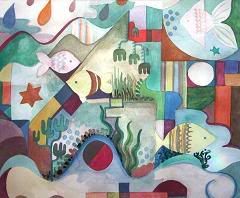
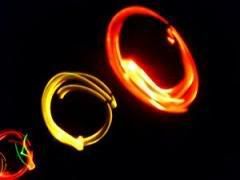
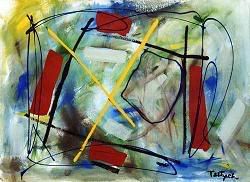
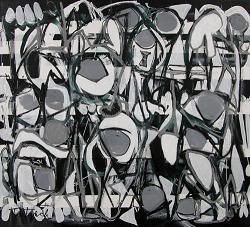
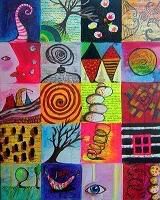
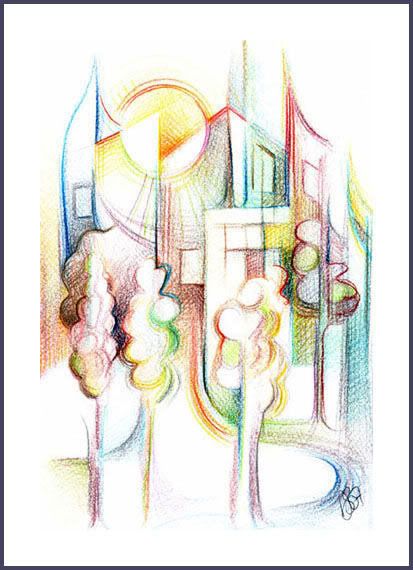
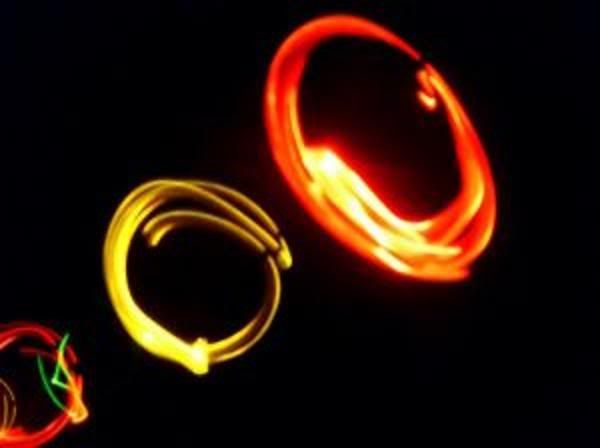
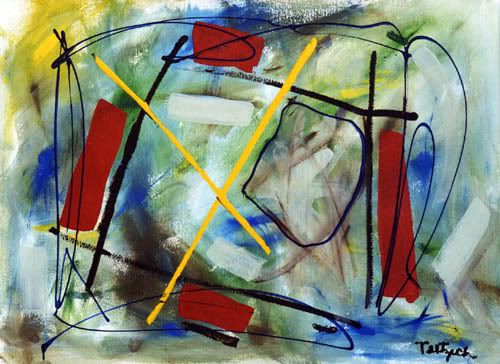
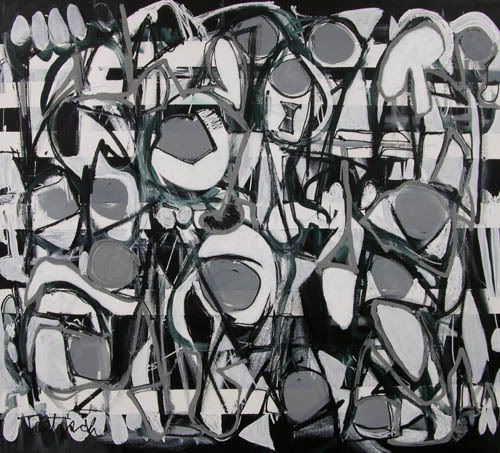
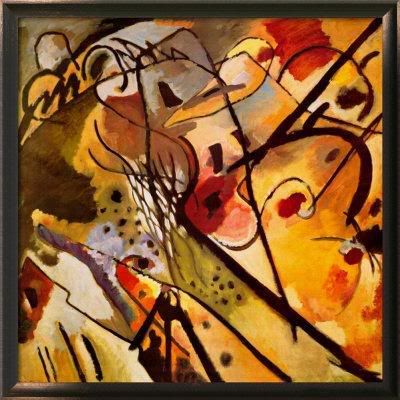
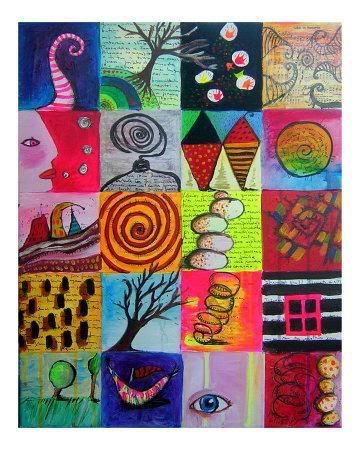
4. Download images given below and paste them in slides folder :
1.jpg │2.jpg │3.jpg │4.jpg │5.jpg │6.jpg │7.jpg │8.jpg
5. Download images given below and paste them in download folder in webserver :
1.jpg │ 2.jpg │ 3.jpg │4.jpg │5.jpg │6.jpg │7.jpg │8.jpg
Java Code for Sildeshow
import java.applet.*;
import java.awt.*;
import java.awt.event.*;
import java.net.*;
public class Slideshow extends Applet implements Runnable
{
// Variable Declaration
Thread runner;
boolean left,right,click,auto;
boolean but0,but1;
boolean b0,b1;
boolean waitMessage = true;
String str_desc[] = { // Display Messages
" This is an Abstract piece.Painted on:20/11/86.",
" This picture is an Abstract work.Painted on:10/1/89.",
" This picture is a Canvas oil painting (15/8/92).",
" This is a Pastel painting (2/10/99).",
" This picture is an Abstract piece.Painted on:6/5/03.",
" This is a Brush painting (2/6/05).",
" This a painted collage (30/1/83).",
" This is my Graphical art piece.Painted on:20/12/08."};
int number=1;
static final int MAX=8;
Image Picture[]=new Image[MAX]; // Image variable
Image Buffer;
Graphics gBuffer; // Graphics Variable
Font a = new Font("Helvetica", Font.PLAIN,12);
Font b = new Font("Dialog", Font.PLAIN,10);
Font c = new Font("Helvetica", Font.BOLD,13);
Rectangle r0=new Rectangle(400,70,50,20); // ON / OFF
Rectangle r1=new Rectangle(400,195,120,20); // Click Here
void loadGraphics()
{ //
Track the status of a number of media objects
MediaTracker t=new MediaTracker(this);
for(int i=0;i< MAX;i++)
{
// Load an image in an applet
Picture[i]=getImage(getCodeBase(),"slides/"+(i+1)+".jpg");
t.addImage(Picture[i],0);
try{
t.waitForAll(0);
}
catch(InterruptedException e)
{
}
waitMessage=false;
}
}
public void init()
{
// Creates an image
Buffer=createImage(size().width,size().height);
gBuffer=Buffer.getGraphics();
// Creates a graphics context for this component
}
public void start()
{
if (runner == null)
{
runner = new Thread (this);
runner.start();
}
}
public void stop()
{
if (runner != null)
{
runner.stop();
runner = null;
}
}
public void run()
{
while(true)
{
try
{
runner.sleep(2500);
}
catch (Exception e)
{ }
if(auto)
{
if(number< MAX)
number++;
else
number=1;
}
repaint();
}
}
public void update(Graphics g)
{ paint(g); }
public void drawArrow(int w,int h,int x,int y,boolean left,boolean over,boolean click)
{
if(click&&over) // set color to yellow on click or mouse over
gBuffer.setColor(Color.yellow);
else
if(over) // set color to orange on mouse over
gBuffer.setColor(Color.orange);
else
// set color to red on click
gBuffer.setColor(Color.red);
if(left)
{
int al[] = {x,x+w,x+w};
int bl[] = {y+h/2,y,y+h};
gBuffer.fillPolygon(al, bl, 3);
}
else {
int ar[] = {x,x,x+w};
int br[] = {y,y+h,y+h/2};
gBuffer.fillPolygon(ar, br, 3);
}
}
public void drawPanel()
{
gBuffer.setColor(Color.white);
gBuffer.fillRect(0,0,size().width,size().height);
// Display Text
drawArrow(40,40,330+70,120,true,left,click);
// Display Left Arrow
drawArrow(40,40,380+70,120,false,right,click);
// Display Right Arrow
gBuffer.setColor(Color.lightGray);
gBuffer.setFont(b);
gBuffer.setColor(auto?Color.orange:Color.lightGray);
gBuffer.fill3DRect(400,70,50,20,!but0);
// Rectangle for ON rectangle
gBuffer.setColor(b0?Color.red:Color.black);
// Color For ON rectangle
String s=auto?"OFF":"ON";
gBuffer.drawString(s,410,85);
gBuffer.setColor(Color.lightGray);
// Download
s="Click Here";
gBuffer.fill3DRect(400,190,120,20,!but1);
gBuffer.setFont(a);
gBuffer.setColor(b1?Color.red:Color.black);
gBuffer.drawString(s,430,205);
// Display Image
gBuffer.drawImage(Picture[number-1],20,20,this);
gBuffer.setColor(Color.black);
gBuffer.setFont(c);
gBuffer.drawString("Slideshow:",300,80);
gBuffer.drawString("Scroll:",300,140);
gBuffer.drawString("Download it!",300,200);
gBuffer.drawString("Description:",300,35);
gBuffer.setFont(a);
gBuffer.drawString(str_desc[number-1],300,50);
}
public boolean mouseDown(Event evt,int x,int y)
{
if(r0.inside(x,y))
{
but0=true; auto^=true;
}
if(r1.inside(x,y))
{
but1=true;
auto=false;
}
if(but1)
{
String link ="http://localhost:8080/download/"+number+".jpg";
try {
// corresponds to an applet's environment
AppletContext a = getAppletContext();
URL url = new URL(link);
// url of the image to be downloaded
a.showDocument(url,"_blank");
}
catch (MalformedURLException e){
System.out.println(e.getMessage());
}
}
if(left)
{
auto=false;
if(number>1)
number--;
else number=8;
}
if(right)
{
auto=false;
if(number< MAX)
number++;
else
number=1;
}
click=true;
repaint();
return true;
}
public boolean mouseUp(Event evt,int x,int y)
{
but0=but1=click=false;
repaint();
return true;
}
public boolean mouseMove(Event evt,int x,int y)
{
Rectangle rl=new Rectangle(330+70,120,40,40);
Rectangle rr=new Rectangle(380+70,120,40,40);
if(rl.inside(x,y))
left=true;
else
left=false;
if(rr.inside(x,y))
right=true;
else
right=false;
if(r0.inside(x,y))
b0=true;
else
b0=false;
if(r1.inside(x,y))
b1=true;
else
b1=false;
repaint();
return true;
}
public void paint(Graphics g)
{
if(waitMessage)
{ g.setColor(Color.blue);
g.drawString("Loading images, please wait...",200,100);
loadGraphics();
}
else
{
drawPanel();
g.drawImage (Buffer,0,0, this);
}
}
}
//< code ="Slideshow" height ="500" width="500">
//< /applet>
Ps: This program works fine, errors if any kindly leavea comment...
/* Requirements
1. Name of java file : Sildeshow.java
2. Name of images folder : slides
3. Names of images 1.jpg, 2.jpg and so on upto 8.jpg.
3. Name of download folder in webserver : download
4. Download images given below and paste them in slides folder :
1.jpg │2.jpg │3.jpg │4.jpg │5.jpg │6.jpg │7.jpg │8.jpg
5. Download images given below and paste them in download folder in webserver :
1.jpg │ 2.jpg │ 3.jpg │4.jpg │5.jpg │6.jpg │7.jpg │8.jpg
Java Code for Sildeshow
import java.applet.*;
import java.awt.*;
import java.awt.event.*;
import java.net.*;
public class Slideshow extends Applet implements Runnable
{
// Variable Declaration
Thread runner;
boolean left,right,click,auto;
boolean but0,but1;
boolean b0,b1;
boolean waitMessage = true;
String str_desc[] = { // Display Messages
" This is an Abstract piece.Painted on:20/11/86.",
" This picture is an Abstract work.Painted on:10/1/89.",
" This picture is a Canvas oil painting (15/8/92).",
" This is a Pastel painting (2/10/99).",
" This picture is an Abstract piece.Painted on:6/5/03.",
" This is a Brush painting (2/6/05).",
" This a painted collage (30/1/83).",
" This is my Graphical art piece.Painted on:20/12/08."};
int number=1;
static final int MAX=8;
Image Picture[]=new Image[MAX]; // Image variable
Image Buffer;
Graphics gBuffer; // Graphics Variable
Font a = new Font("Helvetica", Font.PLAIN,12);
Font b = new Font("Dialog", Font.PLAIN,10);
Font c = new Font("Helvetica", Font.BOLD,13);
Rectangle r0=new Rectangle(400,70,50,20); // ON / OFF
Rectangle r1=new Rectangle(400,195,120,20); // Click Here
void loadGraphics()
{ //
Track the status of a number of media objects
MediaTracker t=new MediaTracker(this);
for(int i=0;i< MAX;i++)
{
// Load an image in an applet
Picture[i]=getImage(getCodeBase(),"slides/"+(i+1)+".jpg");
t.addImage(Picture[i],0);
try{
t.waitForAll(0);
}
catch(InterruptedException e)
{
}
waitMessage=false;
}
}
public void init()
{
// Creates an image
Buffer=createImage(size().width,size().height);
gBuffer=Buffer.getGraphics();
// Creates a graphics context for this component
}
public void start()
{
if (runner == null)
{
runner = new Thread (this);
runner.start();
}
}
public void stop()
{
if (runner != null)
{
runner.stop();
runner = null;
}
}
public void run()
{
while(true)
{
try
{
runner.sleep(2500);
}
catch (Exception e)
{ }
if(auto)
{
if(number< MAX)
number++;
else
number=1;
}
repaint();
}
}
public void update(Graphics g)
{ paint(g); }
public void drawArrow(int w,int h,int x,int y,boolean left,boolean over,boolean click)
{
if(click&&over) // set color to yellow on click or mouse over
gBuffer.setColor(Color.yellow);
else
if(over) // set color to orange on mouse over
gBuffer.setColor(Color.orange);
else
// set color to red on click
gBuffer.setColor(Color.red);
if(left)
{
int al[] = {x,x+w,x+w};
int bl[] = {y+h/2,y,y+h};
gBuffer.fillPolygon(al, bl, 3);
}
else {
int ar[] = {x,x,x+w};
int br[] = {y,y+h,y+h/2};
gBuffer.fillPolygon(ar, br, 3);
}
}
public void drawPanel()
{
gBuffer.setColor(Color.white);
gBuffer.fillRect(0,0,size().width,size().height);
// Display Text
drawArrow(40,40,330+70,120,true,left,click);
// Display Left Arrow
drawArrow(40,40,380+70,120,false,right,click);
// Display Right Arrow
gBuffer.setColor(Color.lightGray);
gBuffer.setFont(b);
gBuffer.setColor(auto?Color.orange:Color.lightGray);
gBuffer.fill3DRect(400,70,50,20,!but0);
// Rectangle for ON rectangle
gBuffer.setColor(b0?Color.red:Color.black);
// Color For ON rectangle
String s=auto?"OFF":"ON";
gBuffer.drawString(s,410,85);
gBuffer.setColor(Color.lightGray);
// Download
s="Click Here";
gBuffer.fill3DRect(400,190,120,20,!but1);
gBuffer.setFont(a);
gBuffer.setColor(b1?Color.red:Color.black);
gBuffer.drawString(s,430,205);
// Display Image
gBuffer.drawImage(Picture[number-1],20,20,this);
gBuffer.setColor(Color.black);
gBuffer.setFont(c);
gBuffer.drawString("Slideshow:",300,80);
gBuffer.drawString("Scroll:",300,140);
gBuffer.drawString("Download it!",300,200);
gBuffer.drawString("Description:",300,35);
gBuffer.setFont(a);
gBuffer.drawString(str_desc[number-1],300,50);
}
public boolean mouseDown(Event evt,int x,int y)
{
if(r0.inside(x,y))
{
but0=true; auto^=true;
}
if(r1.inside(x,y))
{
but1=true;
auto=false;
}
if(but1)
{
String link ="http://localhost:8080/download/"+number+".jpg";
try {
// corresponds to an applet's environment
AppletContext a = getAppletContext();
URL url = new URL(link);
// url of the image to be downloaded
a.showDocument(url,"_blank");
}
catch (MalformedURLException e){
System.out.println(e.getMessage());
}
}
if(left)
{
auto=false;
if(number>1)
number--;
else number=8;
}
if(right)
{
auto=false;
if(number< MAX)
number++;
else
number=1;
}
click=true;
repaint();
return true;
}
public boolean mouseUp(Event evt,int x,int y)
{
but0=but1=click=false;
repaint();
return true;
}
public boolean mouseMove(Event evt,int x,int y)
{
Rectangle rl=new Rectangle(330+70,120,40,40);
Rectangle rr=new Rectangle(380+70,120,40,40);
if(rl.inside(x,y))
left=true;
else
left=false;
if(rr.inside(x,y))
right=true;
else
right=false;
if(r0.inside(x,y))
b0=true;
else
b0=false;
if(r1.inside(x,y))
b1=true;
else
b1=false;
repaint();
return true;
}
public void paint(Graphics g)
{
if(waitMessage)
{ g.setColor(Color.blue);
g.drawString("Loading images, please wait...",200,100);
loadGraphics();
}
else
{
drawPanel();
g.drawImage (Buffer,0,0, this);
}
}
}
//< code ="Slideshow" height ="500" width="500">
//< /applet>
Ps: This program works fine, errors if any kindly leavea comment...